

If you live or work in Alberta, Sunday, November 1, 2026, will be a little different.
Alberta is moving to permanent daylight saving time, which means the clocks will not move back one hour this fall. The province will remain at UTC-6 year-round.
Microsoft has released updates to support the change, including a new (UTC-06:00) Mountain Time (Alberta) time zone in Windows and Outlook. For most people, the transition should be straightforward, but Windows and Microsoft Outlook users should check a few important settings before November 1 so recurring meetings and calendar appointments stay right on schedule.
What Is Changing on November 1?
Until now, Alberta has changed its clocks twice each year along with the rest of the Mountain Time zone.
Starting November 1, 2026, Alberta will no longer make the fall time change. The clocks will remain where they are, and Microsoft identifies the new Windows and Outlook time zone as:
(UTC-06:00) Mountain Time (Alberta)
The Alberta adjustment was included in the September 22 update for Windows 11 (versions 25H2 and 24H2), and in the October 13 security update for other supported Windows versions.
Microsoft has included support for the new Alberta time zone in current Windows updates. Make sure your device has installed the latest updates available for its supported version of Windows.
What Do I Need to Do with My Computer?
Start by making sure your Windows computer is fully updated.
Once the appropriate Microsoft update is installed, Windows will support the new Alberta time zone. If automatic time-zone selection and location services are enabled, Windows should select Mountain Time (Alberta) based on your location. If you set your time zone manually, you may need to select it yourself under Settings > Time & language > Date & time.
Some Windows 10 devices may not receive the Alberta update, depending on their edition and support status. If Mountain Time (Alberta) is unavailable after you install all available updates, contact your IT provider.
If you’re a Sure Systems managed customer, our team can help if your computer does not appear to be using the correct time zone.
What About Outlook and My Calendar?
The Outlook calendar change deserves a little extra attention.
Alberta users should change their Outlook calendar time zone to Mountain Time (Alberta) and review important meetings scheduled for November 1 or later. Updating Windows does not automatically change events originally created using Mountain Time (US & Canada).
Pay particular attention to:
- Meetings scheduled for November 1, 2026, or later
- Recurring meetings that continue beyond November 1
- Important meetings that were scheduled well in advance
Microsoft specifically recommends verifying these events because meetings that continue using the old Mountain Time (US & Canada) rules could appear one hour early or late after the change.
Only the meeting organizer can update a meeting with attendees. Use extra care with recurring meetings, because changing the time zone for the full series may reset individual occurrences that were previously moved or modified.
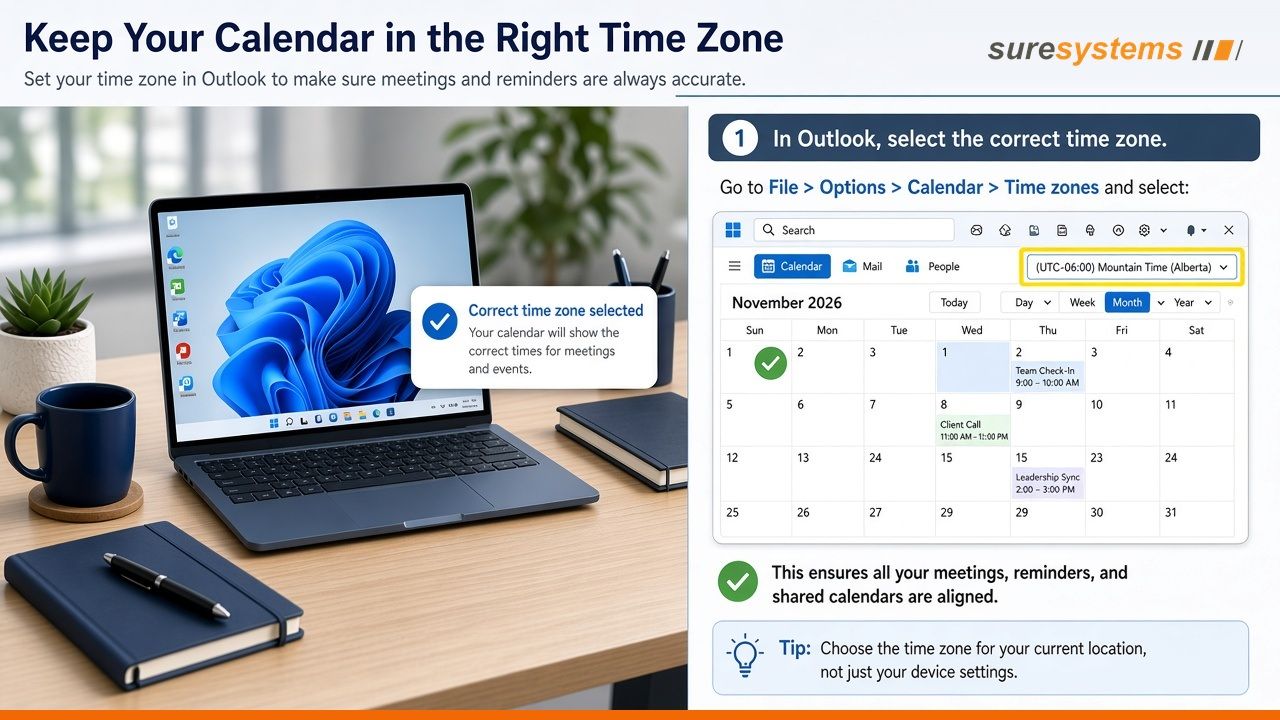
How Do I Check Outlook?
- In Classic Outlook (Desktop): Go to File > Options > Calendar > Time zones, and then select (UTC-06:00) Mountain Time (Alberta).
- In New Outlook or Outlook on the Web: Open Settings (gear icon), select Calendar, and then select View. Under Time zones, make sure your calendar is displayed using (UTC-06:00) Mountain Time (Alberta).
Microsoft recommends opening important upcoming or recurring meetings, displaying their time-zone settings, and changing them to the new Alberta time zone when needed.
What About Outlook on My Phone?
Outlook Mobile uses your phone’s time-zone setting when creating new events. Make sure your mobile device (iOS or Android) has installed the latest operating system updates and is set to the correct Alberta time zone. Existing meetings scheduled for November 1 or later may still need to be reviewed or updated using Outlook on the web or desktop.
If a Meeting Appears One Hour Off
If an Outlook appointment appears one hour earlier or later than expected, check the meeting’s time zone before changing the meeting time. If you are an attendee, remember that only the organizer can update the original invitation.
If you’re a Sure Systems customer and something does not look right, contact our support team. We can help determine whether the problem is related to the new time zone or the meeting itself.
Quick Checklist: What You Need to Do Before November 1
Alberta will not turn its clocks back on November 1. Before then:
- Install the latest Windows updates on your computer.
- Confirm that Windows and Outlook are using (UTC-06:00) Mountain Time (Alberta).
- Review important and recurring meetings scheduled for November 1 or later.
Need a hand? If you are a Sure Systems customer and something does not look right, reach out to our team at [email protected] or call 403-539-9688 before changing meeting times—we’re happy to help!
More Information from Microsoft
- Microsoft Support: Outlook Time Zone Changes for Alberta and British Columbia
- Microsoft Community Hub: Alberta 2026 Time Zone Update Available Now

Calgary skyline photo: Prince’s Island Park by Tamsintj (Wikimedia Commons, CC BY-SA 4.0), adapted with Sure Systems branding.